
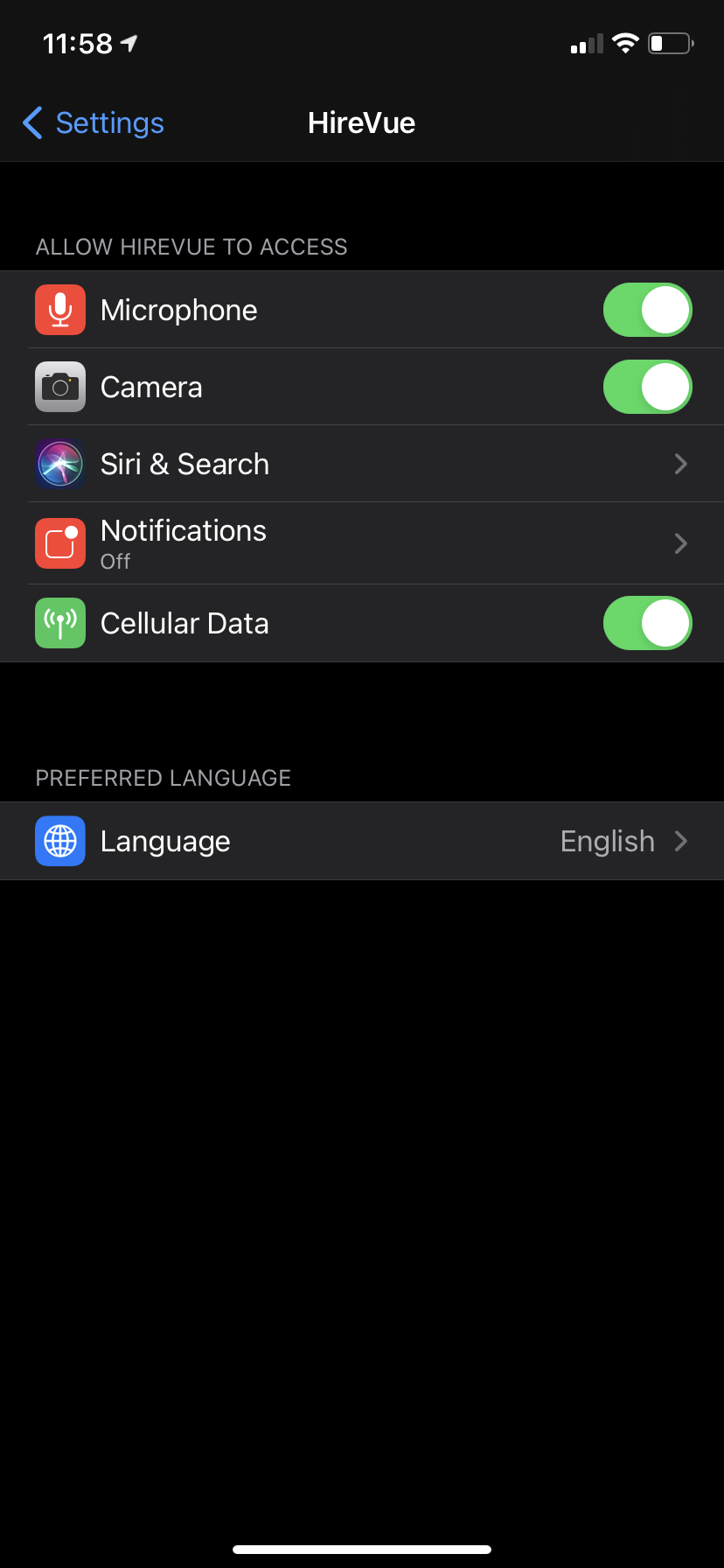
HireVue must access your device's camera and microphone in order for you to complete the interview.
To allow access to device settings, do the following:
Apple Settings |
IIIIIIIIIIIIIIIIIIIIIIIIIIIIIIIIIIIIIIIIIIIIIIIIIIII |
Android Settings |
|
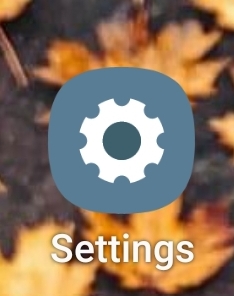
Find and open the Settings screen .
|
|
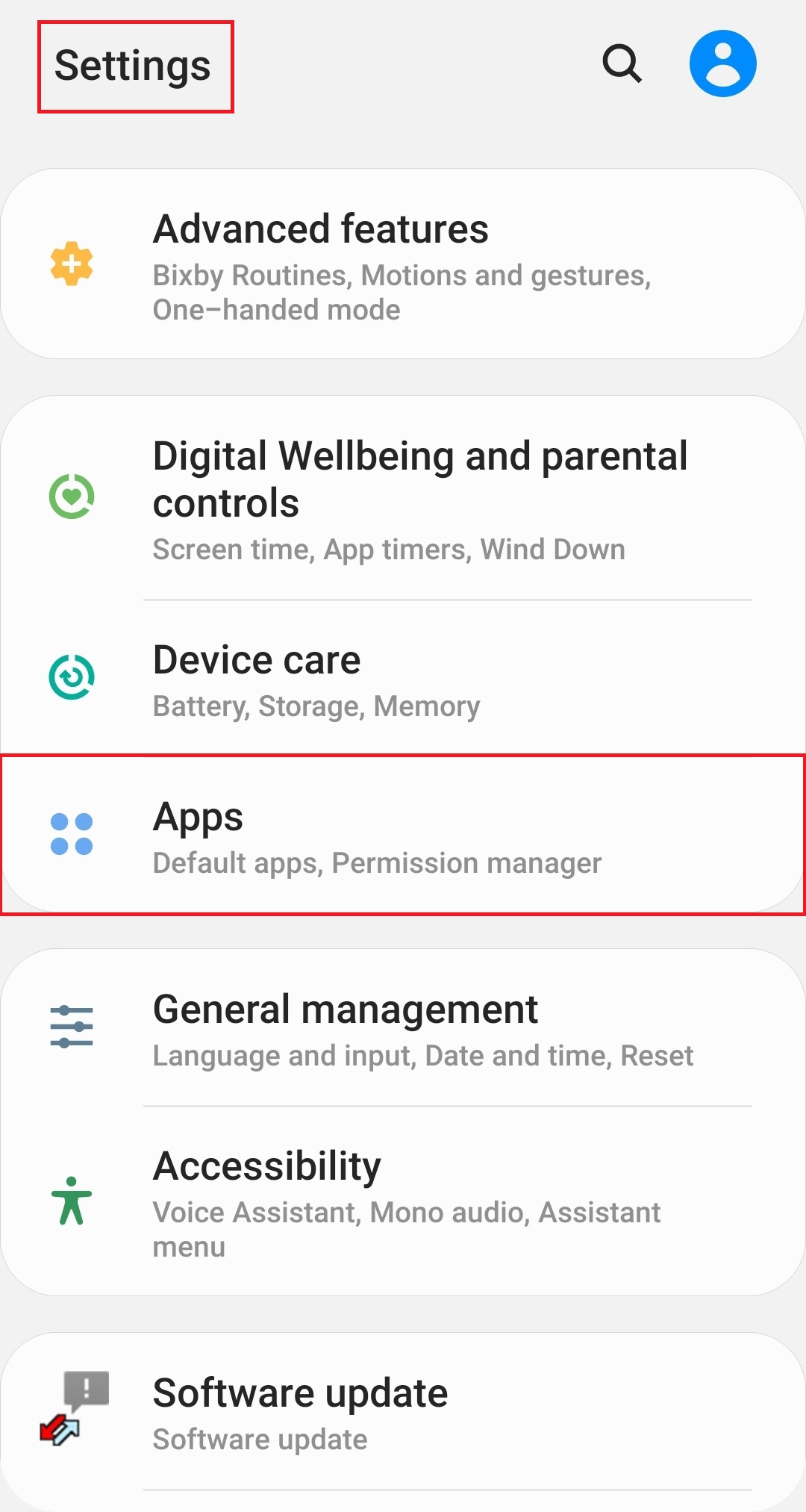
Find and open the Settings screen of your Android device. In your Settings, select Applications.
|
|
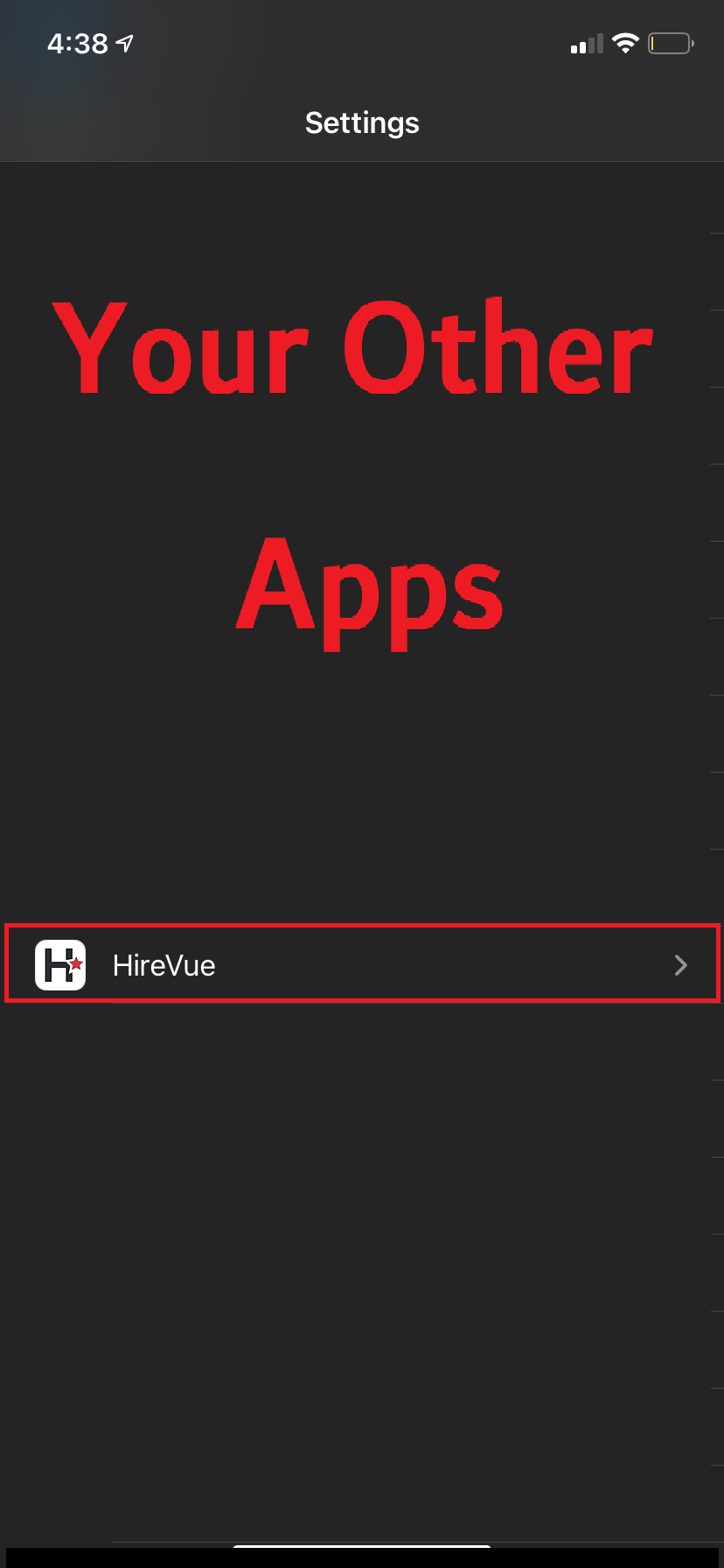
In settings, scroll down to find HireVue app and tap on it.
|
|
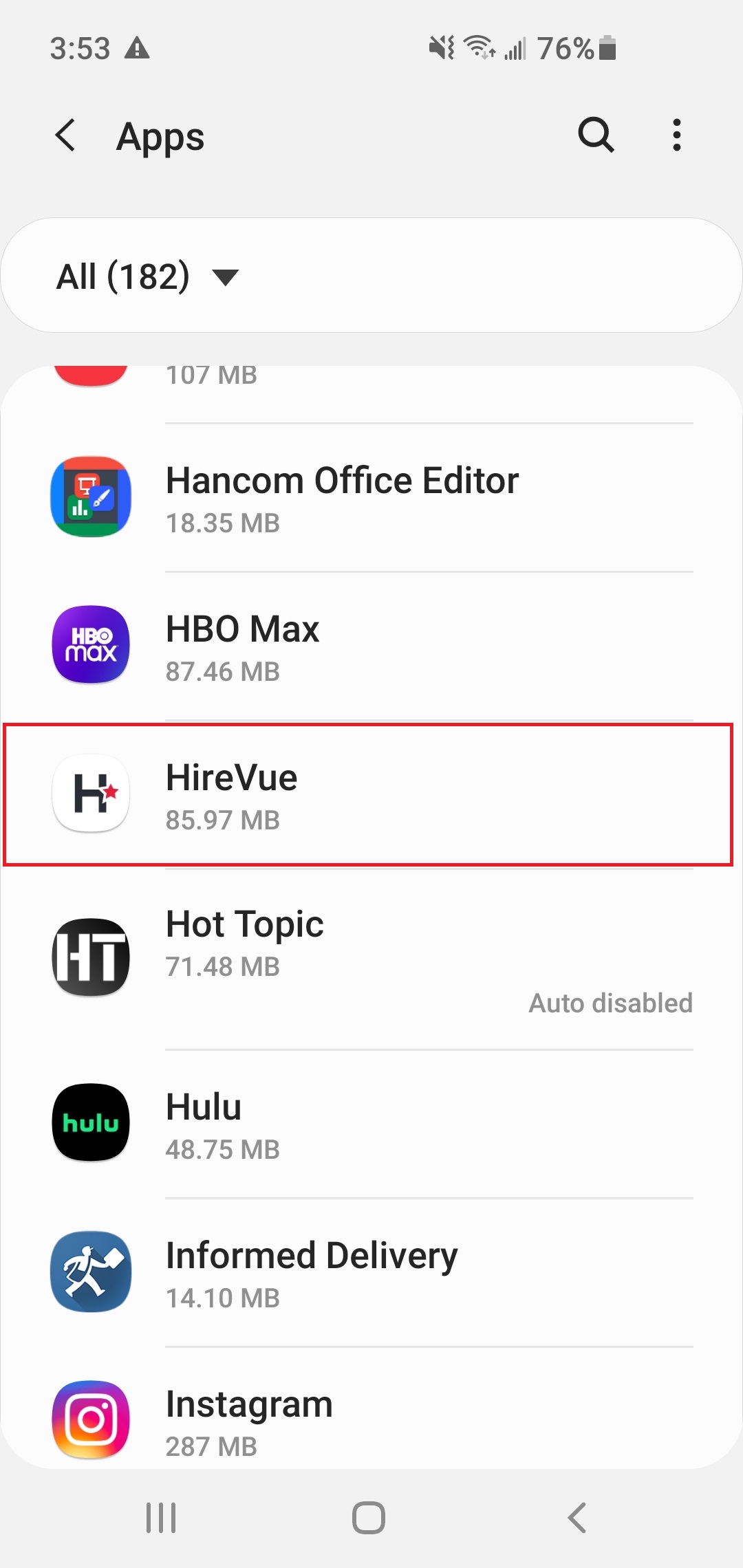
In Apps, find the HireVue app and tap it.
|
|
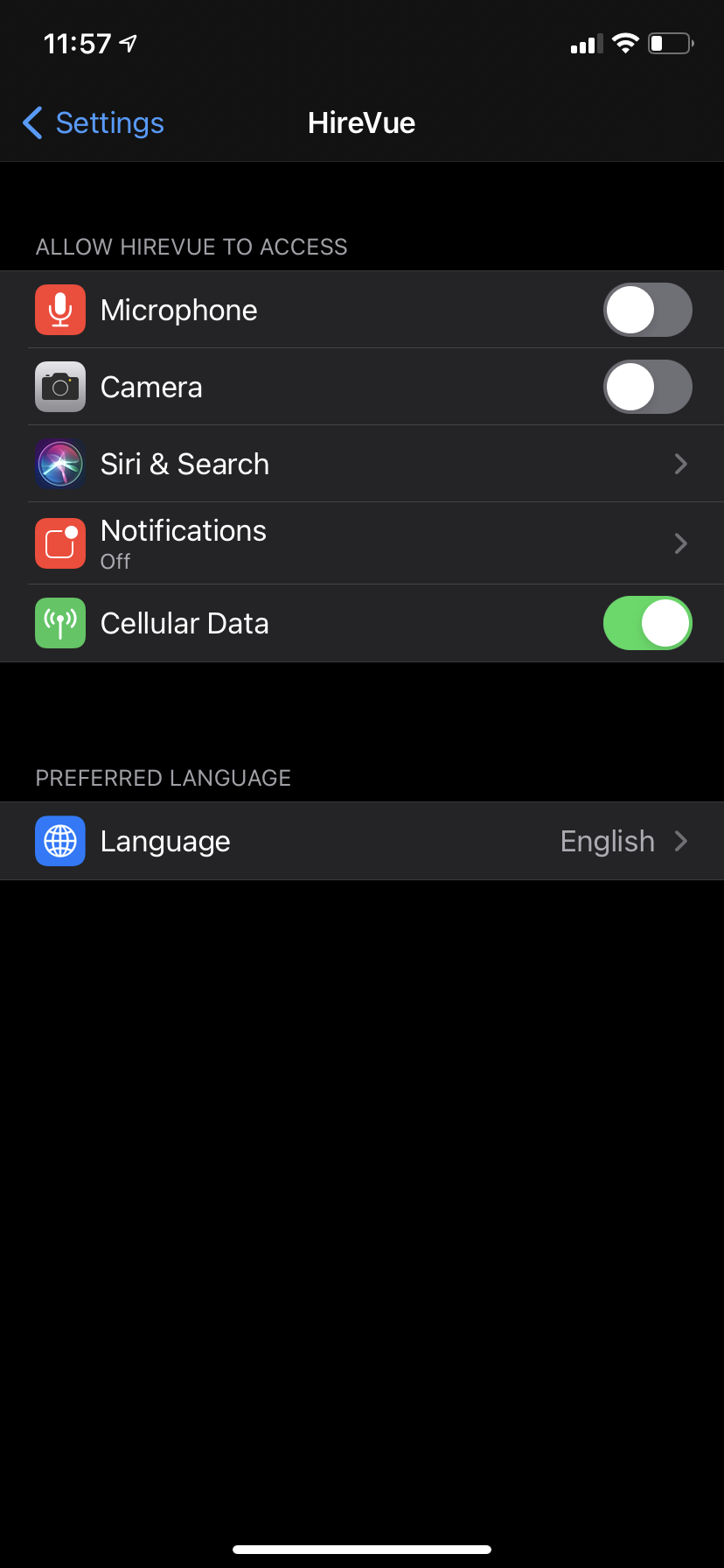
The microphone and the camera must be activated (They are displayed in green as in the image below). If they are disabled, press the button to enable them.
|
|
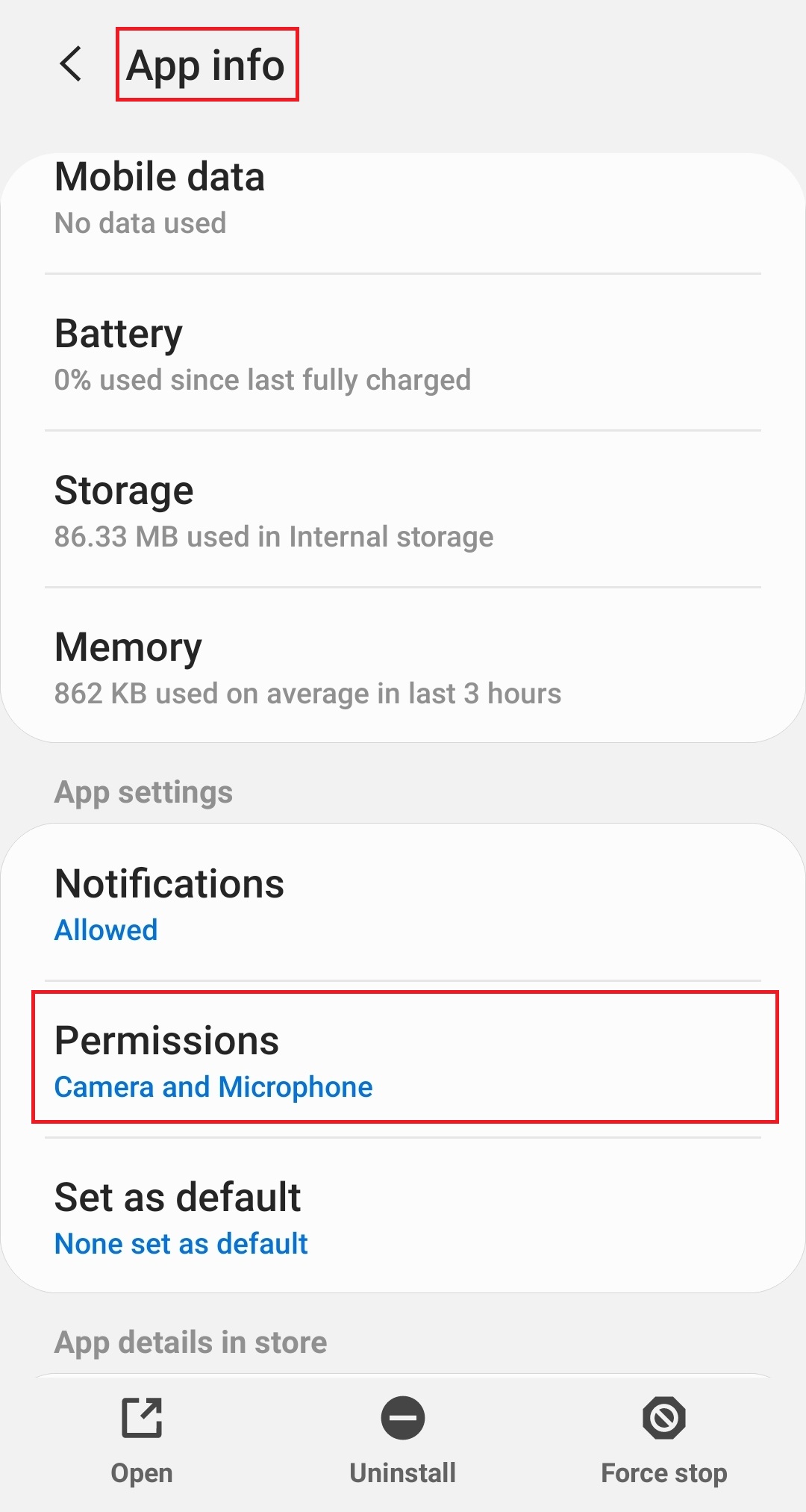
On the HireVue app info screen, tap the Permissions section .
|
|
|
|
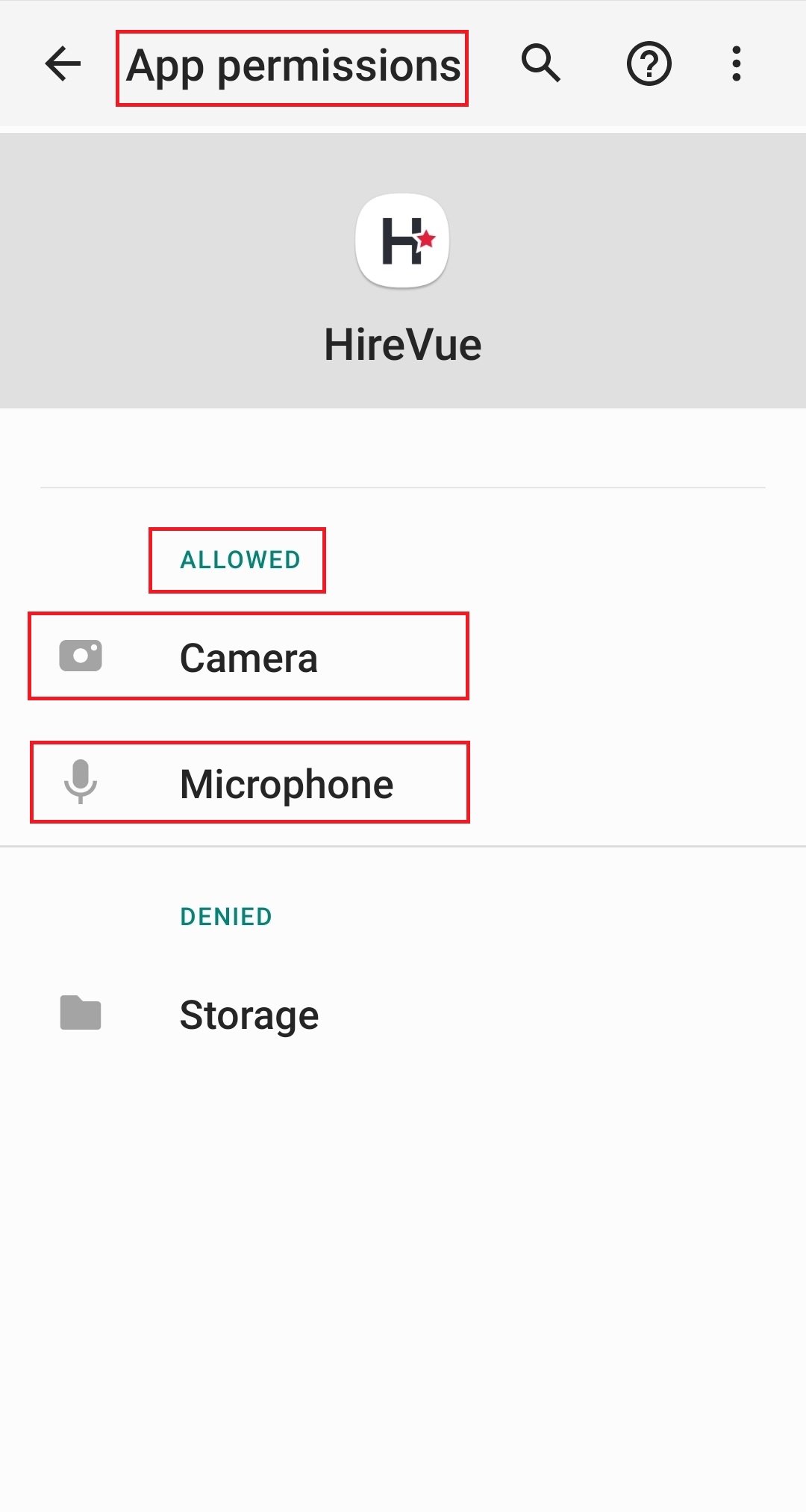
The microphone and the camera must be activated (They are displayed in green as in the image below). If they are disabled, press the button to enable them.
|
Note: If the problem persists after performing this procedure, restart the device and try again. If the device and microphone malfunction persists, you will need to use another device to complete the service.