
If the camera/webcam is failing the equipment test or if you cannot see yourself, close any other programs that may be using your camera such as Skype, Microsoft Teams, etc. Additionally, ensure you are in a room with good lighting.
Follow these steps to check your camera/webcam privacy settings:
1. Press and hold the Windows logo key + I on your keyboard at the same time to open the Settings menu. You can also open this menu by opening the Start Menu, then clicking the gear icon.
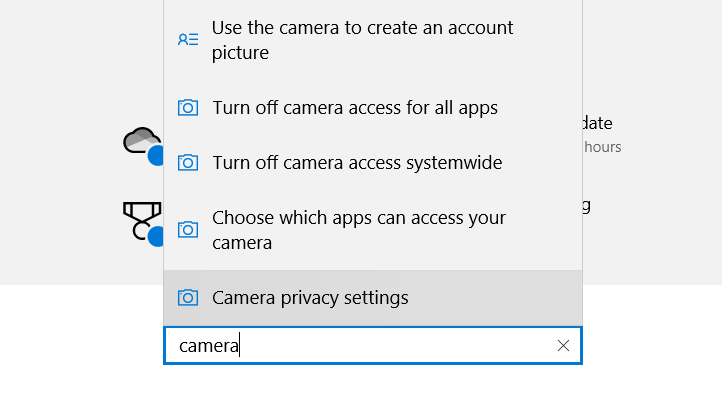
2. In the search box that opens, type "Camera" and select "Camera Privacy Settings."
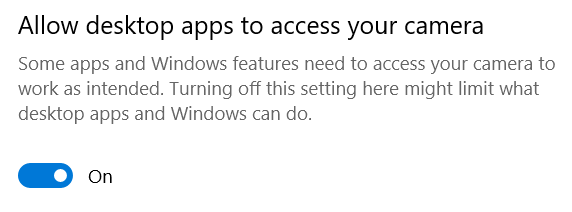
3. Ensure that the settings "Allow apps to access your camera" and "Allow desktop apps to access your camera" are set to "On."

4. Return to your interview and try a practice question.
----
If you're still having trouble after following the above steps, it may be necessary to restart your device's camera.
1. Press and hold the Windows logo key + I on your keyboard at the same time to open the Settings menu.
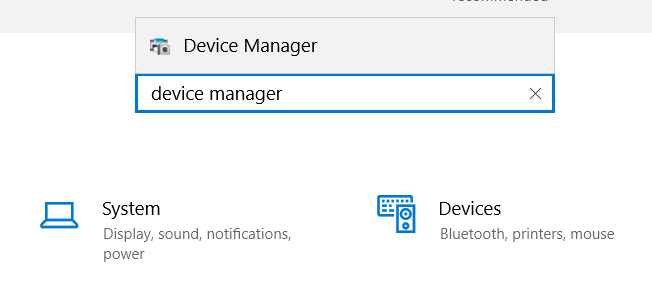
2. In the search box, type "Device Manager" and select "Device Manger."
3. In the window that opens, double-click on Cameras.
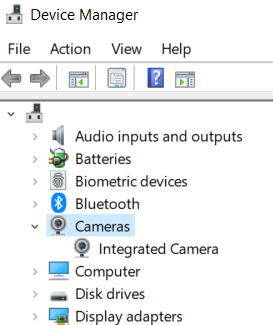
4. Right-click on your camera and select Disable.
Please note: If a camera option does not appear, your computer does not have a webcam installed.
5. In the window that opens, select Yes.
6. Restart your computer.
7. Follow steps 1-3 again to access your camera/webcam in the Device Manager.
8. Right-click on your camera and select Enable.
9. Return to your interview and try a practice question.
If the above steps do not resolve your issue, we recommend switching to a different device for your interview. Click the following link to view our guide about supported devices: Devices you can use to take the interview.