
If the microphone is failing the equipment test or if you cannot hear yourself, close any other programs that may be using your microphone such as Skype, Microsoft Teams, etc. Additionally, please be sure to speak during the microphone test.
Please note: If you are in a Live interview and you see a US LOCAL, TOLL FREE, and an INTERNATIONAL option for phone numbers, your interview's audio will be through your phone and not your computer.
Use these steps to check your microphone settings:
1. Right-click on the Sound icon, typically located at the bottom-right of your screen, and select "Open Sound settings."
2. Under "Input," ensure that the correct microphone is selected. Try speaking into the microphone and watch for the moving blue bar under "Test your microphone." If this bar does not move, your microphone is not picking up sound.
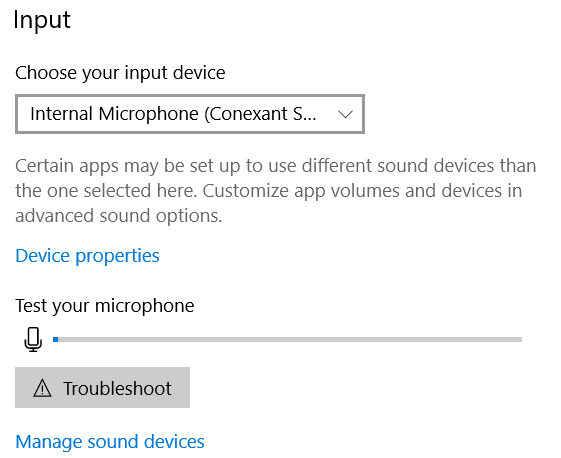
3. Click "Device properties," and use the slider to set the microphone volume to 100. Click "Start test" and try speaking into the microphone. If your microphone is not picking up sound, please continue with the steps below to restart the microphone.
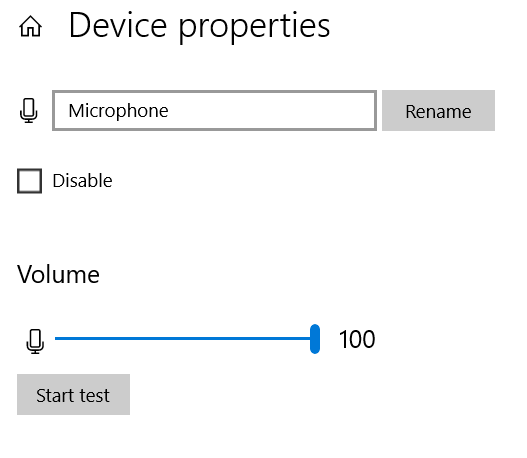
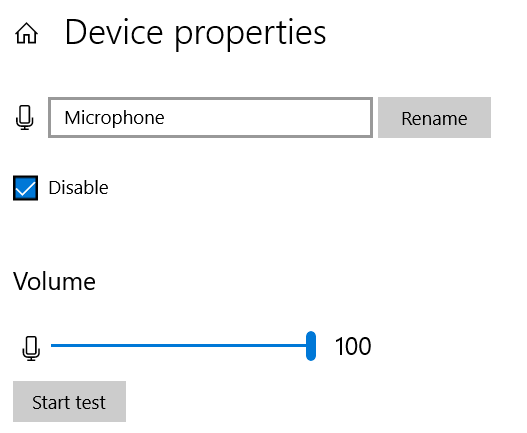
4. In the Device Properties menu, check the box marked Disable to disable the microphone.
5. Restart your computer.
6. Follow steps 1-3 above to access the Device Properties menu and re-enable your microphone by un-checking the box marked Disable.
7. Return to your interview and try a practice question.
If following these steps doesn't resolve the issue, we recommend using a different device to take the interview. Click the following link to view our guide about supported devices: Devices you can use to take the interview.