1. Before the scheduled maintenance start time, select the Test your system before starting maintenance option found in the invitation email. Once your system has been tested, you are redirected to maintenance. You can also select the option to directly access the interview in the invitation email.
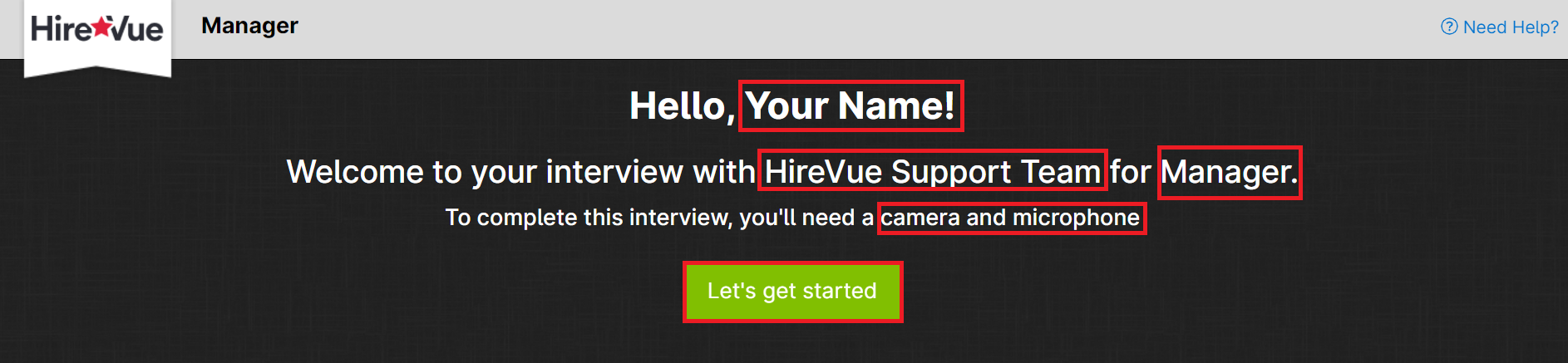
2. The first page of the interview lists your name, company name, job title and required equipment. Select Let's go to continue.
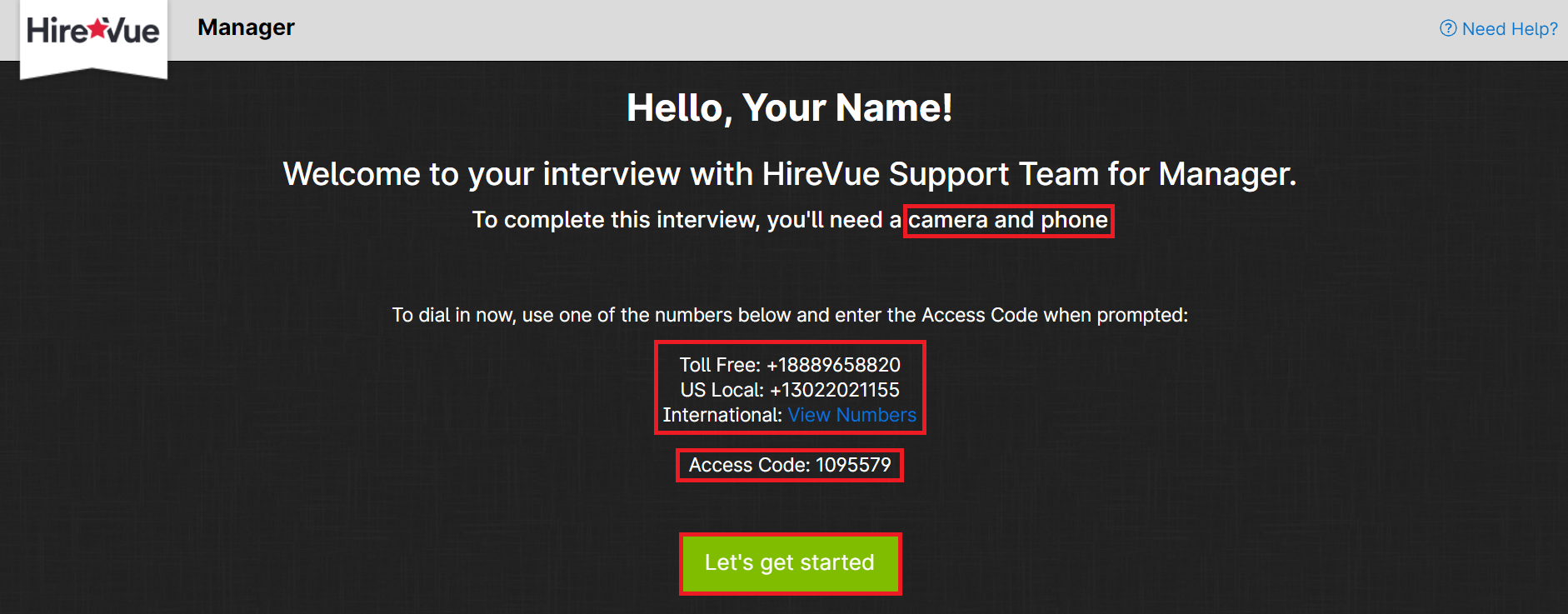
Note: If the first page of the interview also lists phone numbers to dial associated with an access code, you must use your phone for the audio portion during the interview. Call the applicable number, enter the access code when prompted, then select Let's go to the website to continue.
3. If you want to chat with your interviewer, you can click on the Group Chat option at the bottom of the page.

4. The HireVue Terms and Conditions are then displayed. To continue, you must select the I accept option . If you do not agree to these terms, you can contact the company you applied to.
5. You will then be taken to a page with the message Checking your settings . Your connection, camera, microphone and speakers are then tested. To continue live maintenance, all of your equipment must be operational.
For your speakers to pass the test, you must select Yes to confirm that you hear the sound. If you have not heard the sound test, click the Play icon to listen to it again.
Note: If only your connection and camera are tested, you are performing a live interview that requires calling a number. Make sure you have called the correct number and entered the access code at this point.
6. Once your equipment has passed the tests, select the Enter Service Room option .
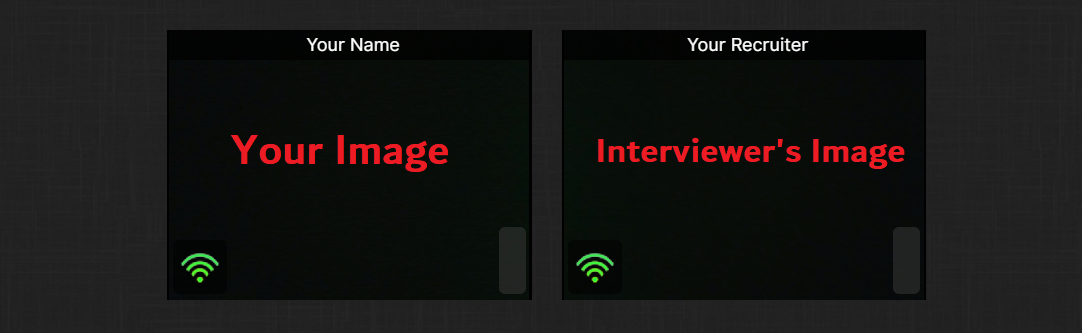
For live interviews that take advantage of the mic and speakers, the mic volume gauge should be moving and showing green. You should also see your image.
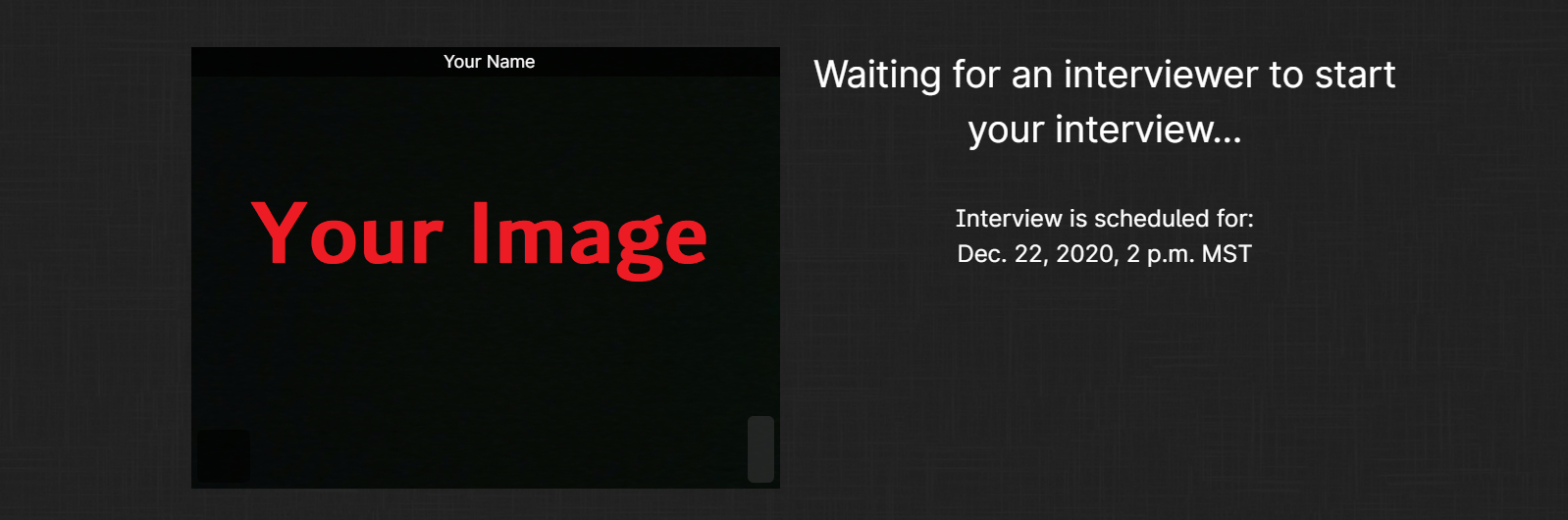
7. In the interview room, you may need to wait for your interviewer (s) to join the session before the interview begins.
8. When the interviewer starts the interview, a “3, 2, 1” countdown is displayed, then the interviewer image appears.